Friday, September 24, 2010

Thursday, September 23, 2010

Powershell - Find top 10 large files in a disk

Powershell make it easy to list down the files in a drive by size through a single line command. Buying a third party software can be avoided by these simple commands. The command is 

Get-ChildItem c:\ -recurse | sort -property length -desc | select -first 10  | format-table Name, Length -autosize

Get-ChildItem 

This command will list down the members of the input [ here it is C drive]. Recurse option will search all the folder under the drive mentioned

Sort -property length -desc

Sort will sort the results with the input provided by Get-Childitem command, it sorts by Size here and desc will tell the sort command to list items in descending order.

Select -first 10

This command will select the first 10 items, if you remove this command it will display all results.

Format-table Name, Length -autosize

Format-table command will format the results and display it as a table and the parameters will display only Name and Length column of the result. -autosize will tell the command to remove unwanted size and display it within the screen limits.


Windows PowerShell 2.0


Wednesday, September 22, 2010

Powershell - Setting default printer in the Desktop

In Windows 7 setting a default printer through powershell cmdlets is a easier task when compared to VBscript. It can achieved through fewer commands. The commands and their description are given below

CMDLETS

$Printer = Get-WmiObject win32_printer  | where {$_.name -match "XPS"}
$Printer.SetDefaultPrinter()

"XPS" in the command can be replaced by your printer name , unique word which will exactly point your printer can be mentioned within the quotations  

win32_Printer 

This WMI class will hold all the printer information in your computer

SetDefaultPrinter() 

This method inside Win32_Printer will set the selected printer as a default printer


Tuesday, September 21, 2010

Powershell - How to check service packs on computers

Service pack of the operating system can found by calling the wmi object win32_operatingsystem. Following commands will enumerate the service pack 
$SP = gwmi win32_operatingsystem
$SP.serivepackmajoreversion

Monday, September 20, 2010

Install and Configure Windows PowerShell

1. Install the Windows Management Framework
  • Download and install the Windows Management Framework. Choose the package that includes Windows PowerShell v2 and WinRM 2.0, and that applies to your operating system, system architecture, and language.
    Note   If your local computer is protected by a Microsoft Internet Security and Acceleration (ISA) server, see
    Windows PowerShell: FAQs for Administrators.

2. Verify that Windows PowerShell can run scripts

  1. Click Start > All Programs > Accessories > Windows PowerShell.
  2. Do one of the following to open Windows PowerShell:
    • If you're running Windows Vista, Windows 7, or Windows Server 2008 R2, right-click Windows PowerShell and select Run as administrator. If you get a user account control prompt that asks if you would like to continue, respond Continue.
    • If you're running Windows XP or Windows Server 2003, click Windows PowerShell.
  3. Run the following command:
    Get-ExecutionPolicy
  4. If the value returned is anything other than RemoteSigned, you need to change the value to RemoteSigned.
    Note   When you set the script execution policy to RemoteSigned, you can only run scripts that you create on your computer or scripts that are signed by a trusted source.

Enable scripts to run in Windows PowerShell

In Windows PowerShell session you just opened as an administrator, run the following command:
Set-ExecutionPolicy RemoteSigned

Thursday, September 16, 2010

The term is not recognized as a cmdlet, function, operable program, or script file. Verify the term and try again.

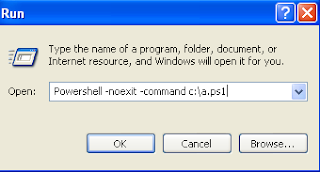
You tried to run a command in the current directory but forgot to prepend it with .\
Write the script in notepad , click save as and type "name.ps1"
In the powershell command prompt type PS > .\name.ps1
or
in Run prompt


Tuesday, October 30, 2007

VBscript - User Cannot Change Password Option

Disabling the User Cannot Change Password Option

Const ADS_ACETYPE_ACCESS_DENIED_OBJECT = &H6
Const CHANGE_PASSWORD_GUID = _
"{ab721a53-1e2f-11d0-9819-00aa0040529b}"

Set objUser = GetObject _
("LDAP://cn=myerken,ou=management,dc=fabrikam,dc=com")
Set objSD = objUser.Get("nTSecurityDescriptor")
Set objDACL = objSD.DiscretionaryAcl
arrTrustees = Array("nt authority\self", "everyone")

For Each strTrustee In arrTrustees
For Each ace In objDACL
If(LCase(ace.Trustee) = strTrustee) Then
If((ace.AceType = ADS_ACETYPE_ACCESS_DENIED_OBJECT) And _
(LCase(ace.ObjectType) = CHANGE_PASSWORD_GUID)) Then
objDACL.RemoveAce ace
End If
End If
Next
Next

objUser.Put "nTSecurityDescriptor", objSD
objUser.SetInfo

Wednesday, October 17, 2007

VBScript - List network adapters including wireless adapters

This script will display all the network adapters including wireless adapters in your workstation.

'Script Start

'Call WMI service win32_networkadapter
strComputer = "."Set objWMIService = GetObject("winmgmts:\\" & strComputer & "\root\cimv2")Set colItems = objWMIService.ExecQuery ("Select * from in32_NetworkAdapter",,48)

'Display all objects.
For Each objItem in colItems

WScript.Echo "Name: " & objItem.Name
WScript.Echo "Availability: " & objItem.Availability

Next
WScript.Quit
'Script End

Friday, October 12, 2007

VBScript - String Arrays

A small script to explain arrays. While using string array don't forget double quotes.

'Script start

Strservers = array("EX1","EX2","EX3")
For each str in strservers 'To get each object in an array
wscript.echo str
Next

'Script end

Wednesday, October 10, 2007

Update E-Mail Addresses Based on Recipient Policy - msexchpoliciesexcluded checkbox

The Recipient Update Service does not update e-mail addresses automatically when the Automatically update e-mail addresses based on recipient policy check box is not selected. That attribute stops the Recipient Update Service from running against the object when this check box is not selected.
The Automatically update e-mail addresses based on recipient policy check box refers to the value of the attribute msExchPoliciesExcluded on the object. If this attribute is not set, it indicates that this check box is selected.
If this value is set to {26491CFC-9E50-4857-861B-0CB8DF22B5D7}, it indicates that the checkbox is not selected.

The Script finds whether the AD object has "The Automatically update e-mail addresses based on recipient policy" checkbox enabled.

'Script Start

Set oConfig = GetObject("LDAP://You LDAP DOMAIN")
Set oConn = CreateObject("ADODB.Connection")
oConn.Provider = "ADSDSOObject"
oConn.Open ""
strQuery = "<" & oConfig.adspath & ">;(&(objectCategory=person)(objectClass=User)(homemdb=*)(!(msExchPoliciesExcluded={26491CFC-9E50-4857-861B-0CB8DF22B5D7})));name,adspath;subtree"
Set oRS = oConn.Execute(strQuery)
While Not oRS.EOF
user = oRS.Fields("name")
'user = User & " " & oRS.Fields("adspath")
wscript.echo User
User = " "
oRS.MoveNext
Wend

'Script end

Thursday, October 4, 2007

Vbscript to create Mail enabled Universal groups or distribution lists

This script creates Mail enabled Universal groups or distribution lists by reading input from a CSV file.
This script is also written to update group owners name and also enables the checkbox "Manager can update member list"


Sample INPUT
universal,Grpname,This is a test grp,Ownername,OU1,OU2,OU3
'Script Start
Const ADS_GROUP_TYPE_GLOBAL = &H2
Const ADS_GROUP_TYPE_LOCAL = &H4
Const ADS_GROUP_TYPE_UNIVERSAL = &H8
Const ADS_ACETYPE_ACCESS_ALLOWED_OBJECT = &h5
Const ADS_FLAG_OBJECT_TYPE_PRESENT = &h1
Const ADS_RIGHT_DS_WRITE_PROP = &h20
Const MEMBER_ATTRIBUTE = "{bf9679c0-0de6-11d0-a285-00aa003049e2}"


Set objConnection2 = CreateObject("ADODB.Connection")
Set objCommand2 = CreateObject("ADODB.Command")
objConnection2.Provider = "ADsDSOObject"
objConnection2.Open "Active Directory Provider"
Set objCommand2.ActiveConnection = objConnection2

Set ObjFSO = createobject("Scripting.FilesystemObject")
Set ObjTextfile = ObjFSO.Opentextfile("C:\dlinput.csv")


Do Until ObjTextfile.AtEndofStream
StrGet = ObjTextfile.ReadLine
StrInput = split(strGet,",")
StrLdappath = "LDAP:// YOUR LDAP PATH "
'wscript.echo strLdappath & " " & strInput(1)
Set objOU = GetObject(strLdappath)


Select Case StrInput(0)
Case "universal"
StrGrpName = strInput(1)
Set objGroup = objOU.Create("Group", "cn=" & strGrpName )
objGroup.groupType = ADS_GROUP_TYPE_UNIVERSAL
objGroup.SetInfo
case Else
StrGrpName = strInput(1)
Set objGroup = objOU.Create("Group", "cn=" & strGrpName )
objGroup.groupType = ADS_GROUP_TYPE_UNIVERSAL
objGroup.SetInfo

End Select

objGroup.sAMAccountName = Right (strInput(1),Len(StrInput(1))-1)
objGroup.SetInfo
objGroup.description = strInput(2)
objGroup.SetInfo
'wscript.echo strGrpName & "@" & strInput(6) & ".yourdomain.com"
objGroup.mail = strGrpName & "@" & strInput(6) & ".yourdomain.com"
objGroup.MailEnable
objGroup.Put "ProxyAddresses", "SMTP:" + "##-" + strInput(1) + "@" + strInput(6) + ".yourdomain.com"
objGroup.SetInfo

'wscript.echo strInput(3)
objCommand2.CommandText ="SELECT Userprincipalname,adspath,distinguishedName FROM 'LDAP:\\Your LDAP PATH' WHERE objectCategory='User' " & "AND CN='" & strInput(3) & "'"
Set objRecordSet2 = objCommand2.Execute
objRecordSet2.MoveFirst
'wscript.echo objRecordSet2.Fields("Adspath").Value
If Not objRecordSet2.EOF then
objGroup.Put "managedby" , Trim(Replace(objRecordSet2.Fields("adspath").Value,"LDAP://"," "))
objGroup.SetInfo
set objSD = objGroup.Get("ntSecurityDescriptor")
set objDACL = objSD.DiscretionaryAcl
set objACE = CreateObject("AccessControlEntry")
objACE.Trustee = objRecordSet2.Fields("UserprincipalName").Value
objACE.AccessMask = ADS_RIGHT_DS_WRITE_PROP
objACE.AceFlags = 0
objACE.Flags = ADS_FLAG_OBJECT_TYPE_PRESENT
objACE.AceType = ADS_ACETYPE_ACCESS_ALLOWED_OBJECT
objACE.ObjectType = MEMBER_ATTRIBUTE
objDACL.AddAce objACE
objSD.DiscretionaryAcl = objDACL
objGroup.Put "ntSecurityDescriptor", objSD
objGroup.SetInfo
End If


wscript.echo "Group named " & strinput(1) & " is created"
Loop

Wscript.echo "***** Script End *****"
'Script end

Queries on scripts. Open http://orangescripts.blogspot.com and post it

Wednesday, October 3, 2007

VBScript - Search and delete MP3 files inside ZIP

'Script start

strDir = "D:\cvc4sp4"
Set fso = CreateObject("Scripting.FileSystemObject")
Set objShell = CreateObject("WScript.Shell")

Set objDir = FSO.GetFolder(strDir)
getInfo(objDir)
Sub getInfo(pCurrentDir)
For Each aItem In pCurrentDir.Files
If LCase(Right(Cstr(aItem.Name), 3)) = "zip" Then
wscript.echo aItem.path
objshell.run "c:\7za d " & aItem.path & " *.mp3" 'Download 7za.exe from internet and place the exe in the specified path. Its free download
End If
If LCase(Right(Cstr(aItem.Name), 3)) = "mp3" Then
wscript.echo aItem.path
aItem.delete(True)
End If
Next
For Each aItem In pCurrentDir.SubFolders
'wscript.Echo aItem.Name & " passing recursively"
getInfo(aItem)
Next
End Sub

'Script End

Queries on customization. Open http://Orangescripts.blogspot.com and post it.

Tuesday, October 2, 2007

VBScript - Printer - Logging when printer is used

'Script start

strComputer = "."
Set objWMIService = GetObject("winmgmts:\\" & strComputer & "\root\cimv2")
Set colEvents = objWMIService.ExecQuery _
("Select * from Win32_NTLogEvent Where LogFile='System' and eventcode=10")
Set objFSO = CreateObject("Scripting.FileSystemObject")
Set objFile = objFSO.CreateTextFile("C:\Events.CSV")
For Each objEvent in colEvents
strTimeWritten = objEvent.TimeWritten
dtmTimeWritten = CDate(Mid(strTimeWritten, 5, 2) & "/" & _
Mid(strTimeWritten, 7, 2) & "/" & Left(strTimeWritten, 4) _
& " " & Mid (strTimeWritten, 9, 2) & ":" & _
Mid(strTimeWritten, 11, 2) & ":" & Mid(strTimeWritten, 13, 2))
dtmDate = FormatDateTime(dtmTimeWritten, vbShortDate)
dtmTime = FormatDateTime(dtmTimeWritten, vbLongTime)
strDescription = objEvent.Message
strEvent = dtmTime & "," & trim(strDescription)
objFile.WriteLine strEvent
Next
objFile.Close


'Script End

Queries on scripts ? . Open http://orangescripts.blogspot.com and post it.

Monday, October 1, 2007

VBScript - Outlook - Send message from text file

'Script start


Set objOutlook = CreateObject("Outlook.Application")
Set objOutlookMsg = objOutlook.CreateItem(0)
Const ForReading = 1
Set objFSO = CreateObject("Scripting.FileSystemObject")
Set objTextFile = objFSO.OpenTextFile ("C:\Documents and Settings\murugan1\Desktop\mailsg.txt", ForReading)
strNextLine = objTextFile.Readall
wscript.echo StrNextLine
With objOutlookMsg
.To = InputBox("Enter To field")
.Subject = InputBox("Enter Subject")
.Body = strNextLine
.Send
End With
Set objOutlookMsg = Nothing
Set objOutlook = Nothing


'Script End


Queries on customization. Open Orangescripts.blogspot.com and post it .

VBScript - Internet Explorer - Proxy settings

'Script Start

On Error Resume Next
strComputer = "."

Set objWMIService = GetObject("winmgmts:" _
& "{impersonationLevel=impersonate}!\\" & strComputer & "\root\cimv2")
Set colItems = objWMIService.ExecQuery("Select * from Win32_Proxy")


Const HKEY_CURRENT_USER = &H80000001
Set objRegistry = GetObject("winmgmts:\\" & strComputer & "\root\default:StdRegProv")
strKeyPath = "SOFTWARE\Microsoft\Windows\CurrentVersion\Internet Settings"
strValueName = "ProxyEnable"
dim dWord
objRegistry.GetDWORDValue HKEY_CURRENT_USER , strKeyPath , strValueName ,dWord
if dWord = 1 then
dwValue = 0
objRegistry.SetDWORDValue HKEY_CURRENT_USER, strKeyPath, strValueName, dwValue
else
For Each objItem in colItems
dwValue = 1
objRegistry.SetDWORDValue HKEY_CURRENT_USER, strKeyPath, strValueName, dwValue
objItem.SetProxySetting "HOME","8080" 'Change parameters here
Next
end if


'Script End
Got from website dev.thatsit.net.au
How to execute a VBScript
Please post suggestions to improve this blog.
You can reach me at itmurugappan@hotmail.com

Saturday, September 29, 2007

VBScript to read MYSQL database

' Script start

Const adClipString = 2 ' 00000002
Dim oFS : Set oFS = CreateObject( "Scripting.FileSystemObject" )
Dim sFSpec : sFSpec = ".\imexportmysql.txt"
sFSpec = oFS.GetAbsolutePathName( sFSpec )
sFSpec = Replace( sFSpec, "\", "/" )
Dim oCNCT : Set oCNCT = CreateObject( "ADODB.Connection" )
Dim sCS : sCS = "DRIVER={MySQL ODBC 3.51 Driver};" _
+ "Server=localhost;" _
+ "Port=3306;" _
+ "Option=16384;" _
+ "Stmt=;" _
+ "Database=test;" _
+ "Uid=;" _
+ "Pwd=;"
Dim sSQL
oCNCT.Open sCS
If oFS.FileExists( sFSpec ) Then oFS.DeleteFile sFSpec
sSQL = "SELECT * FROM tblPerson INTO OUTFILE '" + sFSpec + "'"
oCNCT.Execute sSQL
WScript.Echo sSQL
sSQL = "DELETE FROM tblPerson"
oCNCT.Execute sSQL
WScript.Echo sSQL
sSQL = "SELECT COUNT(iId) FROM tblPerson"
WScript.Echo sSQL, "=>", oCNCT.Execute( sSQL ).Fields( 0 ).Value
sSQL = "LOAD DATA LOCAL INFILE '" + sFSpec + "' INTO TABLE tblPerson"
oCNCT.Execute sSQL
WScript.Echo sSQL
sSQL = "SELECT * FROM tblPerson"
WScript.Echo sSQL
WScript.Echo oCNCT.Execute( sSQL ).GetString( adClipString, , vbTab, vbCrLf, "NULL" )
End if
oCNCT.Close

output

dbcnt::doImExportMySQL()
SELECT * FROM tblPerson INTO OUTFILE 'M:/trials/02dbcnct/imexportmysql.txt'
DELETE FROM tblPerson
SELECT COUNT(iId) FROM tblPerson => 0
LOAD DATA LOCAL INFILE 'M:/trials/02dbcnct/imexportmysql.txt' INTO TABLE tblPerson
SELECT * FROM tblPerson
1 A
2 B
3 m
4 e
5 K

Script from : http://www.visualbasicscript.com/fb.aspx?m=50814

Queries on customization. Open http://Orangescripts.blogspot.com and post it

VBScript - To get service tag of your desktop

Usage: Script.vbs computer1 computer2 computer3

'Script start

For i = 0 to wscript.arguments.count-1
sComputer = wscript.arguments(i)
Set oWMI = GetObject("winmgmts:\\" & sComputer & "\root\cimv2")
Set oCol = oWMI.ExecQuery("Select * from Win32_ComputerSystemProduct")
For Each x in oCol
wscript.echo sComputer & vbtab & x.IdentifyingNumber
Next
Next

'Script End

content from pooradmin.com

Queries on customization. Open http://Orangescripts.blogspot.com and post it .

VBScript to add entry in a Registry path

'Script start

const HKEY_LOCAL_MACHINE = &H80000002
strComputer = "MyNetworkComputername"Set oReg=GetObject("winmgmts:{impersonationLevel=impersonate}!\\" & strComputer & "\root\default:StdRegProv")strKeyPath = "Softwares\Microsoft\Windows\Currentversion\Run"
strValueName = "StartMyProgram"
strVal="myprogram.exe"
oReg.SetstringValue HKEY_LOCAL_MACHINE, strKeyPath, strValueName, strVal

'Script End

Queries on customization. Open http://orangescripts.blogspot.com/ and post it .

Friday, September 28, 2007

WScript.exe and CScript.exe Options

For the most part, options listed in the following table are applicable to both WScript.exe and CScript.exe. Exceptions are noted.

/B Batch mode; suppresses command-line display of user prompts and script errors. Default is Interactive mode.
/D Turns on the debugger.
/E:engine Executes the script with the specified script engine.
/H:CScript or /H:WScript Registers CScript.exe or WScript.exe as the default application for running scripts. If neither is specified, WScript.exe is assumed as the default.
/I Default. Interactive mode; allows display of user prompts and script errors Opposite of Batch mode.
/Job: Runs the specified JobID from the .wsf file.
/logo Default. Displays a banner. Opposite of nologo.
/nologo Prevents display of an execution banner at run time. Default is logo.
/S Saves the current command-line options for this user.
/T:nn Enables time-out: the maximum number of seconds the script can run. The default is no limit. The /T parameter prevents excessive execution of scripts by setting a timer. When execution time exceeds the specified value, CScript interrupts the script engine using the IActiveScript::InterruptThread method and terminates the process.
/U Used with Windows NT and Windows 2000 to force the command line output to be in Unicode. There is no way for CScript to determine whether to output in Unicode or ANSI; it defaults to ANSI.
/X Launches the program in the debugger.
/? Displays a brief description of and usage information for command parameters (the usage information).